Azure AD’s sign in logs also only go back 30 days, which makes it highly recommended to stream Azure AD’s sign in logs to a Log Analytics workspace (Azure Monitor). You just need one single P1 license in your tenant to be able to enable this.
However, even if you don’t stream your sign in logs, Microsoft does keep track of when an account last signed in.
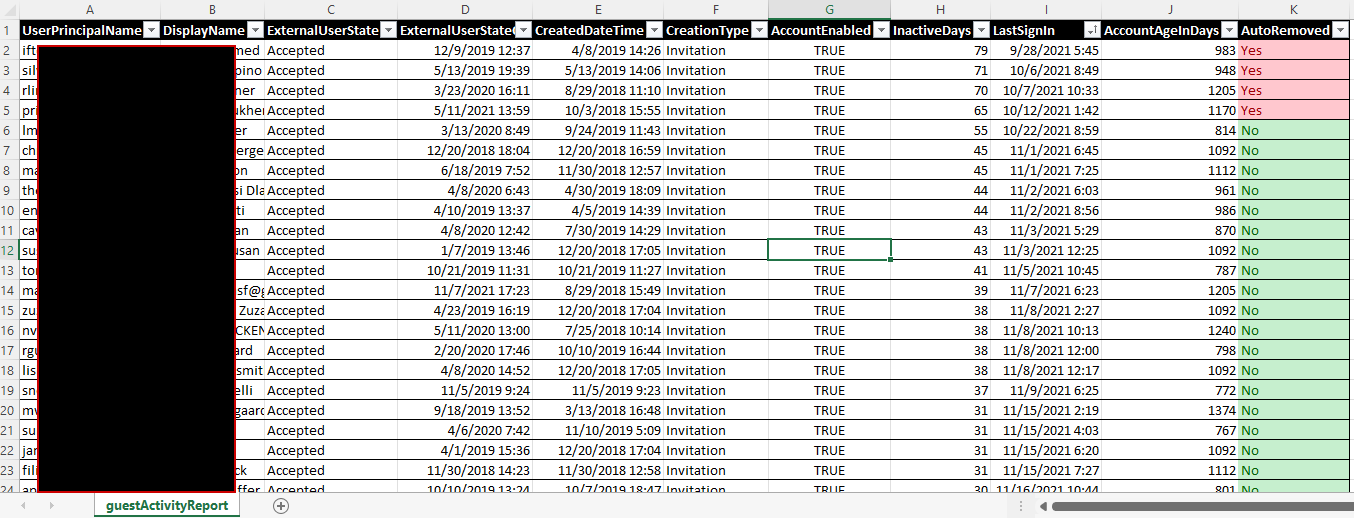
My script gets the last sign in data of all guest accounts in your tenant, without any dependencies other than the Az PS module.
If a guest user has never signed in, the creationDate is used to determine inactivity. Otherwise either the last interactive or last non interactive sign in is used (whichever is most recent).

Additionally, the script can also be configured to automatically clean up any guest accounts that have been inactive for a given number of days by using the -removeInactiveGuests switch.
Even in large environments, processing only takes a few minutes at most.
Download
Download the script from my Gitlab here:
https://gitlab.com/Lieben/assortedFunctions/-/blob/master/get-AzureAdInactiveGuestUsers.ps1
Limitations
Microsoft started using these properties in april 2020, so accounts active before that will seem like they have never been active.
Scheduling
This script supports running non-interactive as a runbook in Azure Automation if you supply the -nonInteractive switch. Before this will work, you’ll have to enable Managed Identity on your automation account and run a small script to assign graph permissions to the Managed Identity: AuditLog.Read.All and Organization.Read.All and if you also want it to be able to execute deletions: User.ReadWrite.All and assign the MI the ‘Privileged Authentication Administrator’ role in Entra.
Reports
If you wish, you can also let the script mail you a report in CSV format. Add the Mail.Send graph permissions like you did with device permissions and give the MailFrom and MailTo parameters a value.
Disclaimer
As always this script is provided as-is and should be reviewed and then used at your own risk.