Category Archives: Security

Sensitive group protection

It is best practise in IT to secure access to resources with Groups.

Membership of a security group means access to whatever resources are secured by that group. Sometimes these groups are self-managed by an owner, sometimes centrally.

In all cases, fairly low privileged users, that are not global admins, can add users to these groups including themselves. Imagine that you have a group called ‘Global Admins’, and your helpdesk user assigns himself to that group. You’d like to know right?

With Privileged Access Groups in Azure AD (Preview) you can protect groups like these actively, but, this requires a P2 license and still lacks some customization features.

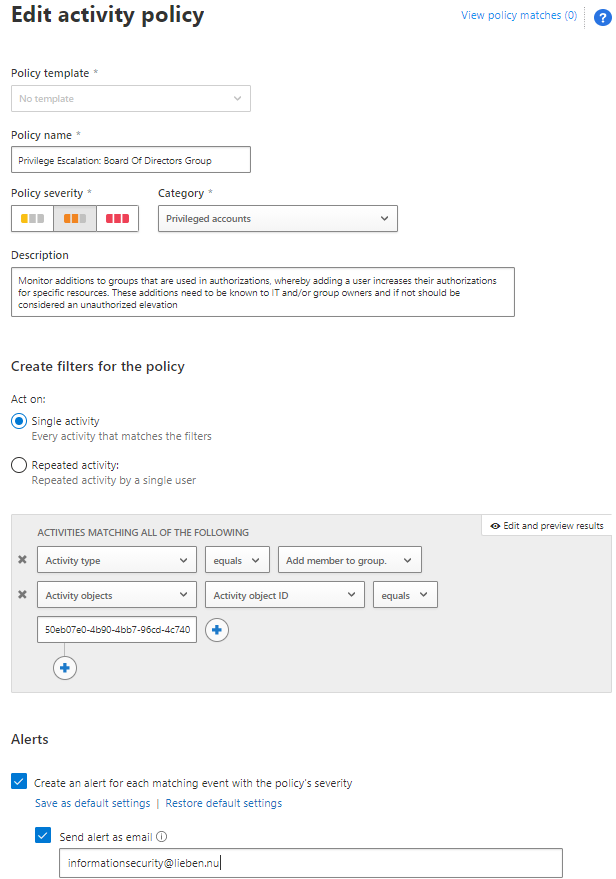
An alternative method is to use a simple alerting rule in MCAS (Microsoft Cloud App Security), where you set an alert when ‘someone’ joins a specific group, or if you want to do more than alerting you could also run an automation playbook.

Here’s how to protect a specific Azure AD or Office 365 group with MCAS:

  1. look up its GUID in AzureAD
  2. Create an Activity Policy in the MCAS console
  3. Specify the group GUID as ‘Activity object ID’ in the policy and the correct action type:
Azure AD sign in and audit log retention

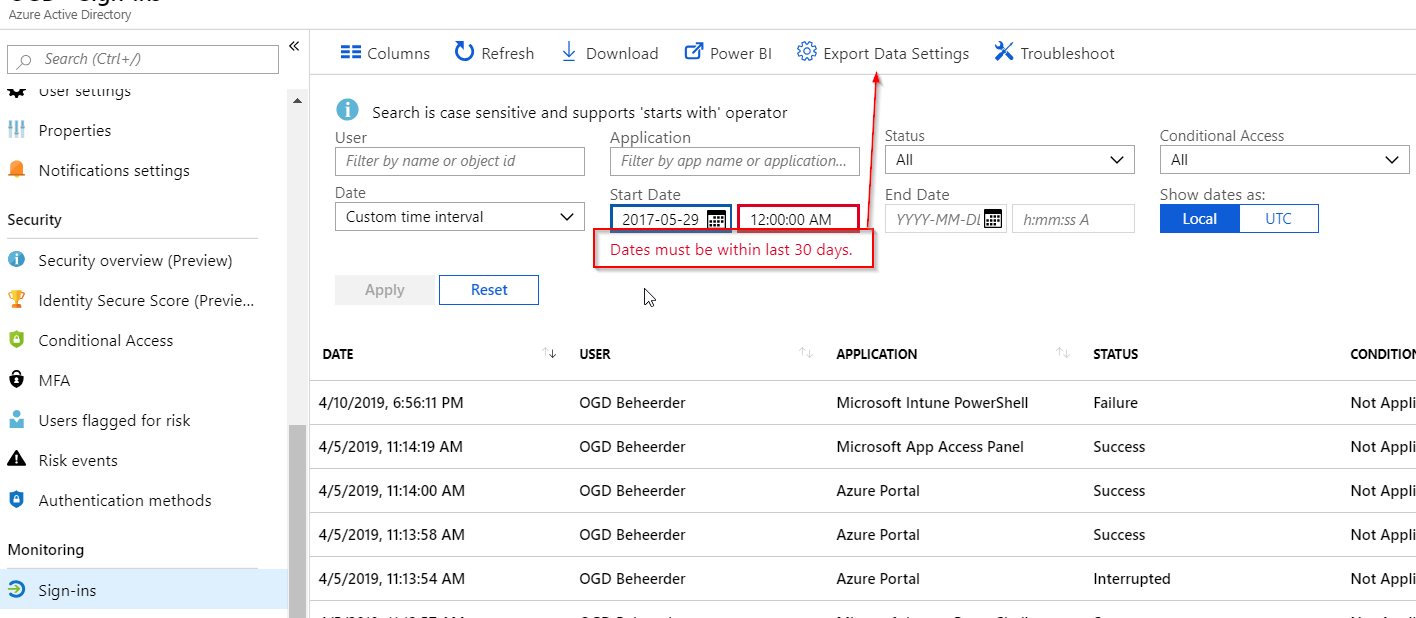
Often we, as cloud admins, need our audit or sign in logs. Usually, we need real-time data because, for example, we’re debugging why that one user has conditional access issues. But sometimes, we need to go back further than 30 days. And that is not something Azure does by default, but can be enabled:


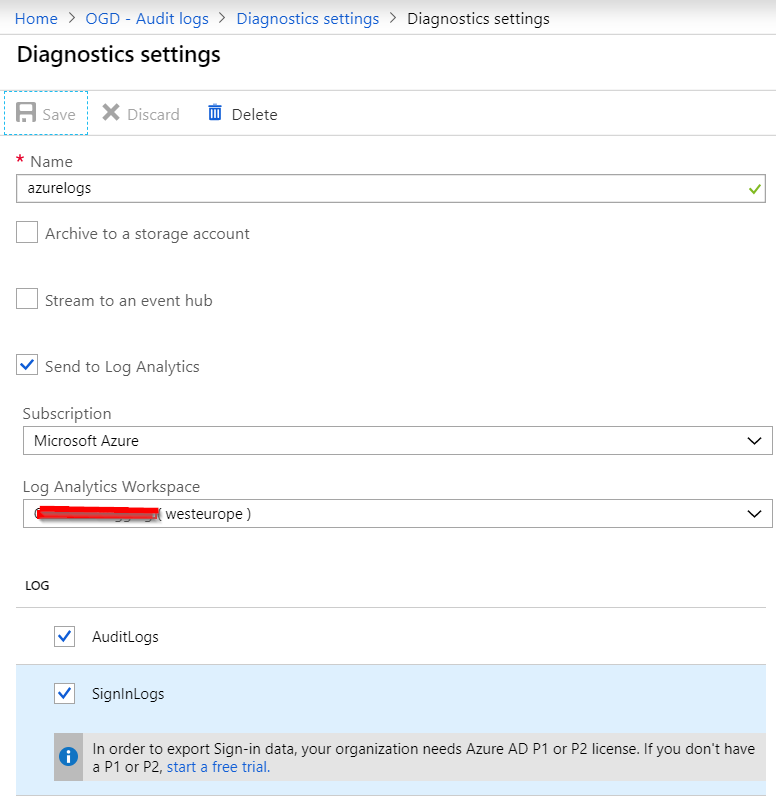
Our options when exporting logs are limited to a Storage account, Log Analytics or an Event Hub. All these options offer multiple extraction methods to cover your transport needs to other systems. The default retention period is then forever, which is nice as we might need audit info going back a bit as hacks are usually discovered after about 206 days.

If you don’t have specific tools or requirements, I recommend setting up a Log Analytics workspace and connecting that to Azure AD:

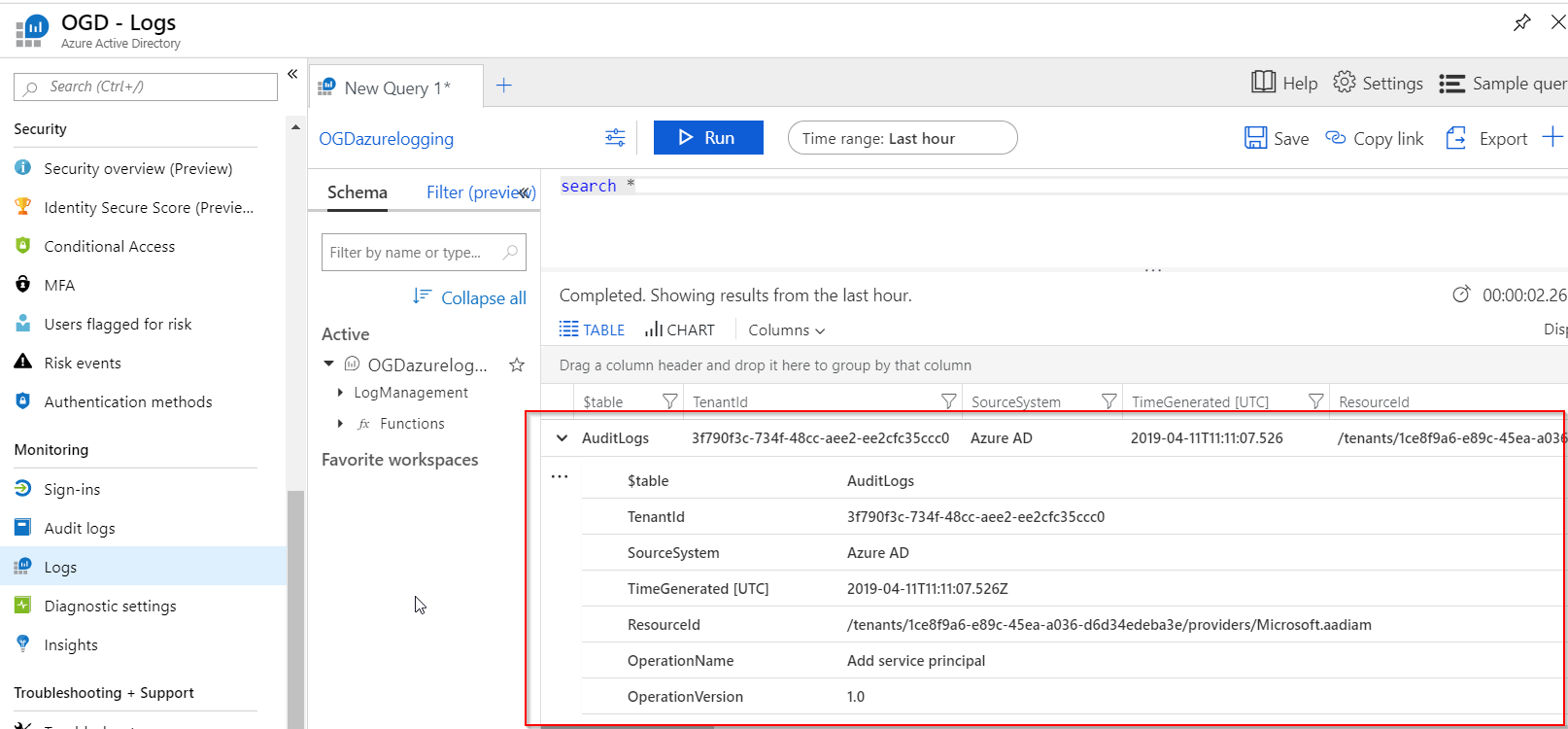
Whichever method you choose, a P1 or P2 license is required. You only need a single license for the entire tenant when using the export audit / singin log functionality of AzureAD. Once configured, the Logs option directly bring you to the Log Analytics workspace search results:

I’ve briefly shown how to configure AzureAD to send audit and sign in logs to Log Analytics so you can go back further than 30 days. Stay tuned for the next post that will utilize these logs to dive deeper into Guest User activity.

Devices that lack a bitlocker recovery key in AzureAD

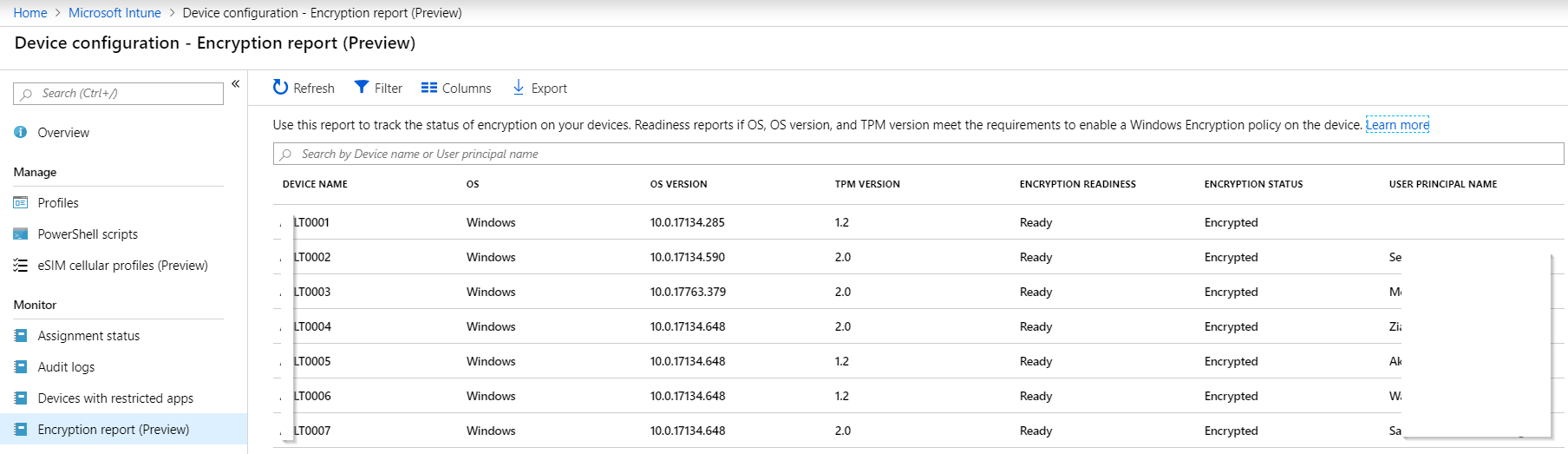
With Intune’s new Bitlocker Encryption Report administrators have an effective way of seeing which of their devices have been encrypted.

But if we want to know if we can actually recover the bitlocker key of a device, we need to know if it was ever uploaded to AzureAD.

Network or local device issues can sometimes prevent the recovery key from reaching AzureAD, resulting in lost data if the device’s disk needs to be recovered for any reason. To hunt down devices that have not escrowed their recovery key to AzureAD, you can use my report function (in PowerShell as always):

GitLab source download link

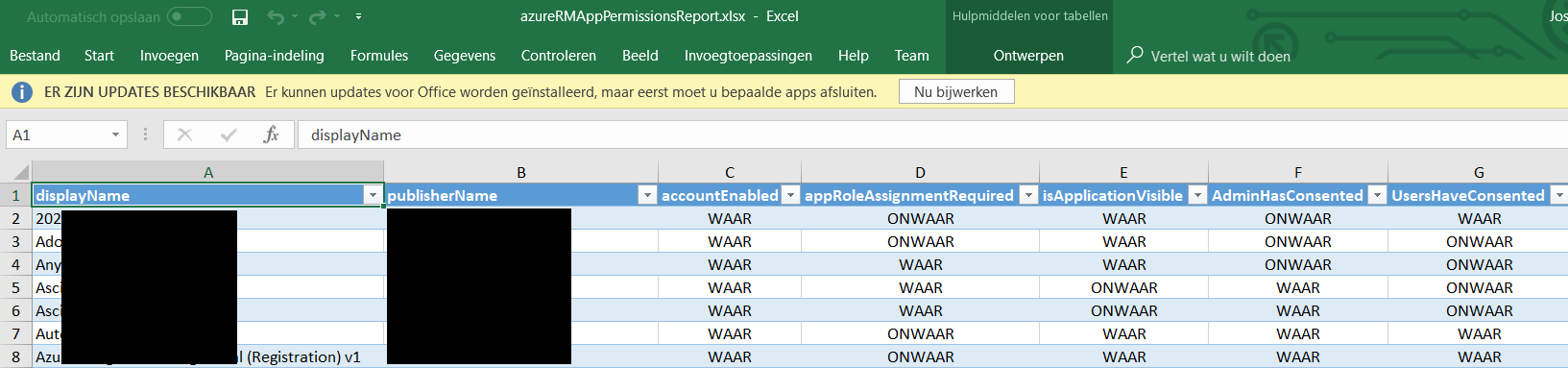
Full AzureAD Applications Permission overview

So you’d like to know which applications are living in your AzureAD?

And you’d like to know which of those were added by your admins, and what permissions those applications have?

And you’d also like to know which applications your users are consenting to, and what rights those applications have on your users?

Look no further, I wrote a script to export all of that to Excel for you!

Application overview

Apps an admin has consented to and the type of rights it needs

Apps a user has consented to and the type of rights it needs

Apps to user mapping, for an easy overview of which user has consented to which app

Get it at:

Credits to Doug Finke for the Excel module I’m using!