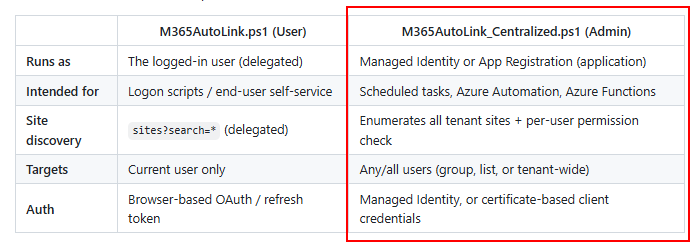
Today brings quite the update to M365AutoLink! Big improvements to central management and performance! Read below for all changes.
Or just get it here: https://github.com/jflieben/M365AutoLink
Security & authentication
- PKCE +
stateadded to the browser authorization-code flow. Any callback whosestatedoes not match is ignored, so another local process can no longer inject an authorization code. - v2 (v2.0) Entra endpoints are now used for both the authorization and token requests (
scope=instead of the legacyresource=), aligning with the OAuth 2.1 public-client baseline. - Loopback listener hardened: switched from a raw
TcpListeneron a fixed port toSystem.Net.HttpListeneron an ephemeral port (fixes collisions on multi-session RDS/AVD hosts and races between instances). All reflected error text is HTML-encoded, and a small branded landing page is shown after sign-in. - TLS 1.2/1.3 is enforced at startup on Windows PowerShell 5.1.
- Uninstall now deletes the refresh-token cache and log (
RefreshToken.xmlis a usable credential and must never survive an uninstall). - Consent/sign-in failures no longer call
Exitfrom deep in the request path (which silently killed the tray). They surface as an error balloon with the admin-consent URL and keep the tray alive for a retry.
Reliability
- Access-token caching fixed: a valid cached access token is now reused instead of performing a full refresh-token exchange (+ DPAPI encrypt + disk write) on every API call. Token lifetime comes from
expires_inwith a 5-minute renewal margin; the refresh token is written to disk only when Entra rotates it. - Deletion circuit breaker: the delete phase is skipped (with a warning + balloon) when SharePoint Search returns incomplete results or the desired set shrank by more than
$DeletionSafetyRatio. A tombstone model requires a target to be absent on$DeletionTombstoneRunsconsecutive runs before deletion.$ForceReconcileoverrides both. - Single-instance guard: a session mutex prevents two tray icons / token-rotation races / log contention. A second launch signals the running instance to run and exits.
- Metadata lookup no longer aborts the whole run on one transient error; failed items are skipped with a warning.
- Unified retry pipeline:
Invoke-GraphRaw(config load/save) now retries transient 429/5xx/network errors, with correctRetry-Afterhandling on both PowerShell 5.1 and 7. - Logging is written directly to
lastRun.log(no longer dependent onStart-Transcript) and rotated (run-<timestamp>.log, keeping$LogHistoryCount). - Pre-flight checks warn (in one balloon) when OneDrive is not set up for a work account or the identity provider is unreachable.
Performance
- Existing-shortcut metadata is fetched in a single
RenderListDataAsStreamcall (with an automatic per-item fallback) instead of one call per shortcut. - The fixed
Start-Sleep -Milliseconds 500after every create/rename/delete was removed; throttling is handled by the shared retry/back-off.
UX
- High-DPI: the process declares per-monitor-v2 DPI awareness and the floating progress bar scales with the display, so the UI is crisp at 125–200% scaling.
- Manage shortcuts dialog: text filter, click-to-sort columns, Exclude-all/Include-all, and the window is resizable and remembers its size.
- Periodic auto-refresh (
$AutoRefreshHours, default off) re-runs on an interval while resident in the tray and shortly after the device resumes from sleep. - First-run onboarding balloon explains where the shortcuts are and points at Manage shortcuts.
- Reduced the logon console flash on Windows 11 by launching through
conhost.exe --headless.
Compatibility & correctness
- PowerShell 7: large SharePoint JSON payloads use
ConvertFrom-Json -AsHashtableinstead of the .NET-Framework-onlyJavaScriptSerializer;Add-Type -AssemblyNamereplaces the deprecatedLoadWithPartialName. - Wildcard exclusion/inclusion now uses PowerShell
-like(correct anchor semantics). Note: exclusions tighten slightly — a trailing*is required for prefix matches (e.g.*/sites/HR*). - Window-drag handler resolves the form at event time (dragging borderless dialogs works reliably).
- Dead-code sweep (unused launch-mode set, per-page blocking GC, stale unique-name state).