Offboarding has always been an interesting case, and one I rarely see customers do 100% right. The will is there, often focused on keeping access to data or reclaiming licenses.
But execution is a whole different world. Automation for onboarding often exists, offboarding rarely, and if it exists, it is usually still triggered manually, and more often than not only for managed accounts (admins, guests, service accounts etc are totally forgotten), and then what is actually done upon offboarding?
Microsoft Graph has an option to subscribe to changes, specifically for user objects. This means we can listen to deactivation, idle (x days inactive) or deletion events and act accordingly. E.g. unshare onedrive, notify a manager of flows and powerapps or teams the user still owns, reclaim licenses, disable upon inactve, etc etc.
So I co-wrote a little PowerShell solution, of course perfectly based on best practises around MI auth, least privileges and assume breach.
It lets you configure WHAT (loads of things, expandable) to do WHEN (inactive, delete, deactivate), and runs at almost no cost in your own azure subscription, as usual, open source and a oneliner to install: https://github.com/jflieben/M365AutoRevocate
Another week, another use case for Managed Identities in Automation Accounts!
The scenario today concerns a PowerApp and connected resources that should be shared with external identities, automatically of course. For each user this requires a guest account in the host / resource tenant, and a license. The license can be applied in the home tenant of the guest, or in your tenant.
Key points:
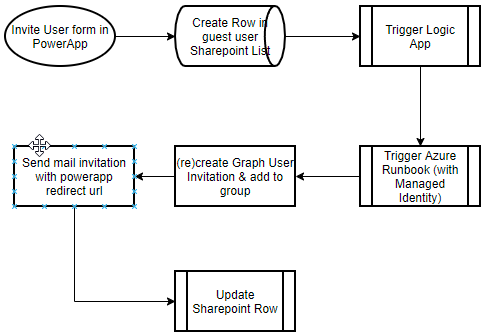
Runbook that invites a user and adds the resulting guest account to a security group
Security group gives access to the PowerApp and underlying (SpO) resources, and uses Group Based Licensing to license the guest for PowerApps and Sharepoint Online
Logic App that is triggered by the PowerApp (trigger on create item in a sharepoint list), and starts the runbook
When the invited user (guest) redeems the invitation, they are directed to a Sharepoint page first so Sharepoint syncs their profile. Otherwise, the PowerApp will not have access to any lists in Sharepoint Online as Guests are not synced to SpO until they access SpO directly.
I may demo the PowerApp, Logic App and Sharepoint lists at some point, but the main thing I wanted to share today is the Azure Runbook that creates the Guest invitation and adds the Guest to a security group using the Managed Identity of the Automation account, instead of service accounts or other pre-2021 solutions:
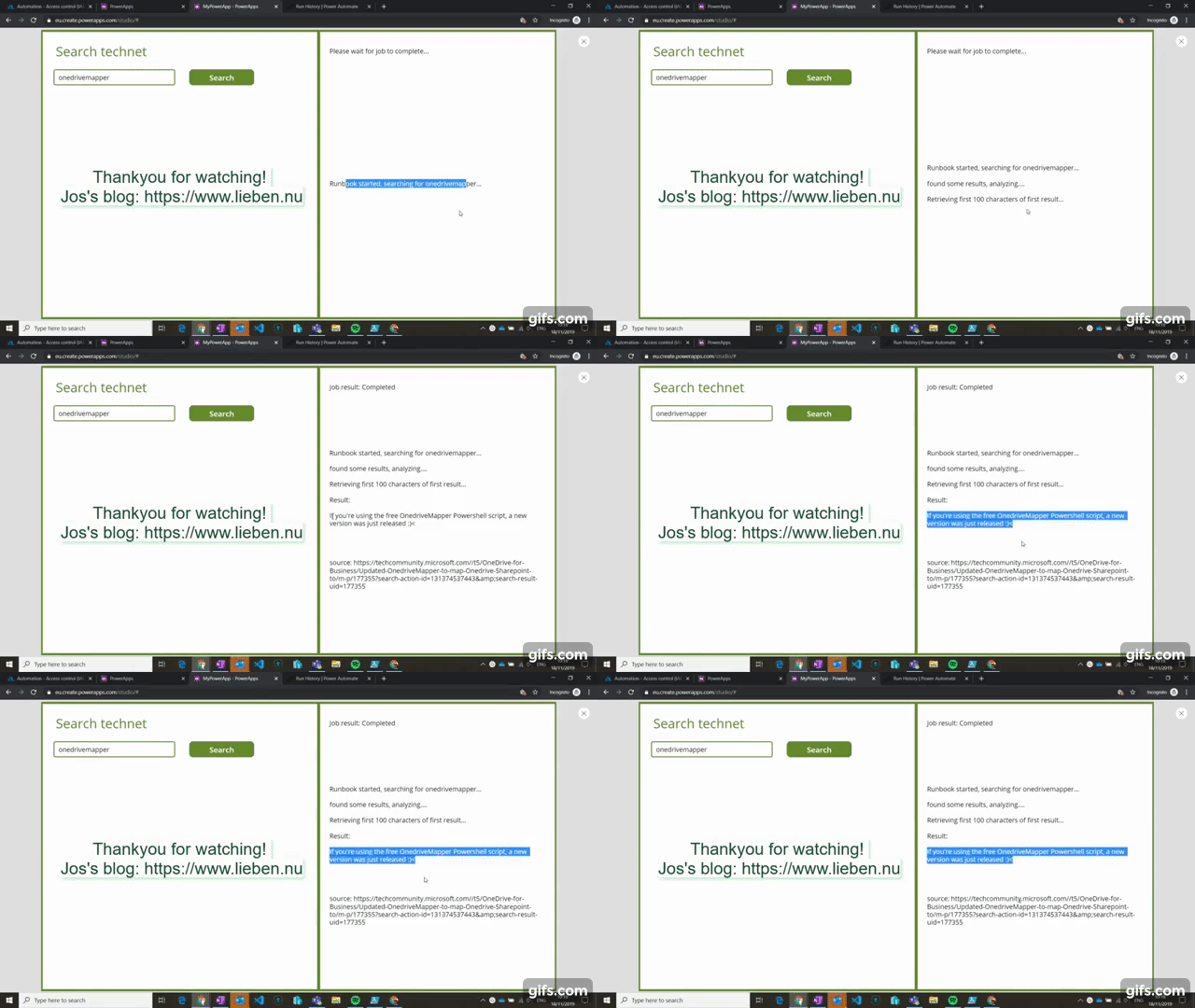
Mostly, the users of my PowerShell scripts are themselves PowerShell users. Sometimes though, the audience is less tech-savvy. In this blog post (with my first EVER video tutorial!) I’ll show you how to give your users a super user friendly interface to your scripts: Microsoft PowerApps.
When you use the Azure AD group that was created to publish your app to when it is ready for distribution, your users will automatically be granted the correct permissions in Azure to start a runbook, as PowerApps does not use its own identity when interacting with connectors, it impersonates the user identity.