Category Archives: Azure Virtual Desktop

M365AutoLink unattended

Doing logon scripts is easy for some, less easy for others, and in general not great in certain types of environments.

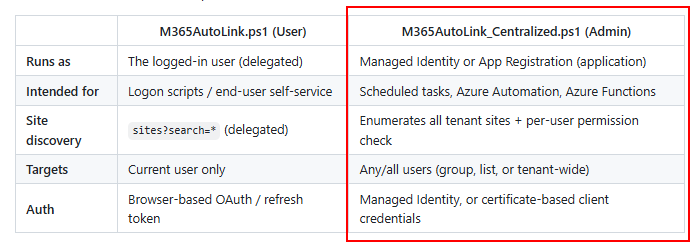
And this led to some questions if I could also make a version of M365AutoLink that can run centrally. There was a hurdle to overcome: how do we know what libraries a user has access to?

M365Permissions already has the answer, so a quick copy paste from the code there and voila, we now have a centrally runnable version of M365AutoLink!

It can run either as managed identity, or cert-based service principal. I recommend running it as a runbook, and don’t run it on tenants with thousands of users or commercially….for commercial use click here 🙂

For full documentation and code: https://github.com/jflieben/M365AutoLink

Multi threading in ADDRS

I’ve added basic multi-threading to ADDRS: https://www.powershellgallery.com/packages/ADDRS/1.1.8

This solely ensures that the most compute intensive task (caching sizes/performance) is not repeated between jobs. You’ll still have to handle running multiple jobs using your own preferred method, e.g. foreach -parallel, runspaces or start-job. Example:


$scriptBlock = {
    Param(
        $vm,
        $measurePeriodHours,
        $workspace,
        $token
    )
    import-module ADDRS -force
    Login-AzAccount -AccessToken $token.Token -AccountId $token.UserId -Tenant $token.TenantId
    set-vmRightSize -doNotCheckForRecentResize -targetVMName $vm.Name -domain "lieben.nu" -measurePeriodHours $measurePeriodHours -workspaceId $workspace.CustomerId -Verbose -maintenanceWindowStartHour 22 -maintenanceWindowLengthInHours 3 -maintenanceWindowDay 6
}

Publishing an MSIX as CIM to AVD in a Pipeline

I wanted to put this out there as it felt like a nifty way to pipeline AVD MSIX files into AVD without any user interaction (other than a pipeline kicking off the script).

https://github.com/jflieben/assortedFunctionsV2/blob/main/publish-MSIXPackageToHostpool.ps1

Basically, above will grab the MSIX file from a known Azure Fileshare (after mounting). It’ll read the MSIX’s primary CIM file for meta data, use the Azure Rest API to add it to the hostpool and then updates a param file of an ARM template which can be used to e.g. update the appgroup in Azure.

You’ll need some background knowledge to re-use above in your specific situation 🙂

Code example:

#create the MSIX package object in the hostpool. Ensure the lastUpdated value is always unique otherwise it will fail to overwrite an existing package with the same value
$apiPostData = @{
    "properties" = @{
        "displayName" = if($packageMeta -match "(?<=<DisplayName>)(.*?)(?=<\/DisplayName>)"){$matches[1]}else{Throw "No display name found in AppManifest"}
        "imagePath" = $imagePath
        "isActive" = $True
        "isRegularRegistration" = $False
        "lastUpdated" = (get-itemproperty $packageFolder.FullName).LastWriteTimeUtc.AddSeconds((Get-Random -Minimum "-150" -Maximum 150)).ToString("yyyy-MM-ddThh:mm:ss")
        "packageApplications" = $packageApplications
        "packageDependencies" = @()
        "packageFamilyName" = "$($packageShortName)_$($packageFamily)"
        "packageName" = $packageShortName
        "packageRelativePath" = "\MSIXPackages\$($packageFolder.Name)"
        "version" = $packageVersion
    }
}

#send the actual API request to register the package in the hostpool using the pipeline serviceprincipal
try{
    $context = [Microsoft.Azure.Commands.Common.Authentication.Abstractions.AzureRmProfileProvider]::Instance.Profile.DefaultContext
    $token = [Microsoft.Azure.Commands.Common.Authentication.AzureSession]::Instance.AuthenticationFactory.Authenticate($context.Account, $context.Environment, $context.Tenant.Id.ToString(), $null, [Microsoft.Azure.Commands.Common.Authentication.ShowDialog]::Never, $null, "https://management.azure.com")          
    Invoke-RestMethod -Uri "https://management.azure.com/subscriptions/$((get-azcontext).Subscription.id)/resourcegroups/rg-common-$($environment)-weeu-01/providers/Microsoft.DesktopVirtualization/hostPools/vdhp-common-$($environment)-weeu-01/msixPackages/$($packageFolder.Name)?api-version=2021-07-12" -Method PUT -UseBasicParsing -ContentType "application/json" -Body ($apiPostData | convertto-json -Depth 15) -Headers @{"Authorization"="Bearer $($token.AccessToken)"} -ErrorAction Stop
}catch{
    Write-Output $_
    closeCIMSession
    Throw
}

The importance of source OS when creating CIM images

When creating a CIM image for MSIX app attach, make sure that you’re using a lower or equal OS version than your target OS in e.g. Azure Virtual Desktop. If you use Windows 11 to create a CIM file and try to mount this on Windows 10, the result will be one of the following.

Azure Portal:

ActivityId: 1ef4d1ad-e4af-42d1-b6fa-139c45775efb Error: The MSIX Application metadata expand request failed on all Session Hosts that it was sent to. Session Host: xxxx1, Error: Native error when mounting CIM, HResult -2147024809, ErrorCode 87.. (Code: 400)

Using the CimDiskImage PS module:

Mount-CimDiskimage : Mounting xxxxx.cim to volume failed with Error:'The operation completed successfully Errorcode:0'
Mount-CimDiskimage : Mounting xxxx.cim to volume failed with Error:'Too many posts were made to a semaphore ErrorCode:298'

Above happens because W10 using V2 CIM disks, while W11 uses V3 CIM disks.

Deallocate Azure AD Joined Azure Virtual Desktop VMs when a user logs off

When you shut down a VM or log off, the VM isn’t actually deallocated and still costs money.

Bernd wrote a nice guide on how to deallocate a VM when a user logs off, using GPO’s, since combined with Start On Connect the user experience is still pretty decent.

For Intune / Microsoft Endpoint Manager, no solution was known yet. So I base64 encoded Bernd’s solution and wrapped it into a SYSTEM wide scheduled task that is triggered by a security eventlog logoff entry.

Deploy this to your VM’s in Intune (either through a user or a machine group) and it’ll ensure users’ VM’s get deallocated when they log off.

This also works on shared VM’s, as it will only deallocate if it is the last user logging off.

You can download/view set-AVDDeallocateOnLogoff.ps1 here.