connect-msolservice : Method not found:'VoidSystem.Runtime.InteropServices.Marshal.PtrToStructure(IntPtr, !!0)'.
Getting the above? Update .NET 3.5, one of the KB’s that comes down from Windows Update will add the correct DLL version.
connect-msolservice : Method not found:'VoidSystem.Runtime.InteropServices.Marshal.PtrToStructure(IntPtr, !!0)'.
Getting the above? Update .NET 3.5, one of the KB’s that comes down from Windows Update will add the correct DLL version.
So you noticed the ‘All Users’, ‘Everyone’ and ‘Domain Users’ groups are missing in Office 365! That’s a pity if you have a mailbox that your whole organisation should be able to access, because Dynamic Distribution lists can’t be used as a security group.
At first, I thought this would be as simple as enabling ‘Dedicated Groups‘ in AzureAD for the tenant. But no, apparently builtin groups already exist, but are simply invisible in the Office 365 / Exchange Online interface.
So, I looked up the SID of the group I wanted to add here, and used Powershell to add the group to the mailbox’s ACL. Here’s an example, where we’re giving Everyone access to a Office 365 shared mailbox called ‘Public Calendar’:
Add-MailboxPermission -Identity "Public Calendar" -User S-1-1-0 -AccessRights FullAccess
Note: these permissions will be invisible in the web interface of Exchange Online, user Get-MailboxPermission to verify / view them.
Warning: obviously, you should never give ‘everyone’ Full Access permissions to anything.
Sometimes, an error can really make you:

Look at this one:
At line:1 char:1
+ & { Set-StrictMode -Version 1; $this.Exception.InnerException.PSMessa …
+ ~
Processing was stopped because the script is too complex.
+ CategoryInfo : ParserError: (:) [cleanFolder], ParseException
+ FullyQualifiedErrorId : ScriptTooComplicated,cleanFolder
When Powershell tells you your script is too complex, you know you’re coding an awesome script but that you’ve either made a mistake or are running into some builtin limit. Finding documentation about this error is hard, but a reply on a forum somewhere pointed me to recursive functions.
Yes, I was using a recursive function in this script. The script itself was started by the Start-Job function in a ‘main’ parent script. If I ran the child script seperately on its own, it had no issues and ran fine.
Start-Job apparently gets you into trouble when you’re using recursive functions and the recursion level becomes too deep. I ended up using Runspaces instead to avoid this issue altogether, and noticed the resulting script was faster and more stable as well.
If you assign licenses in Office 365, you’re essentially assigning license bundles. Each license usually consists of several sublicenses, like this:
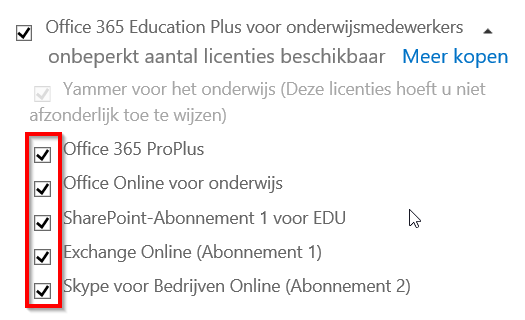
In a case I ran into for a customer, the ‘Exchange Online’ component was sometimes not enabled for certain users. It took us a while to notice that the serviceplan of the main license had been unchecked. In Powershell, it would normally look like this:
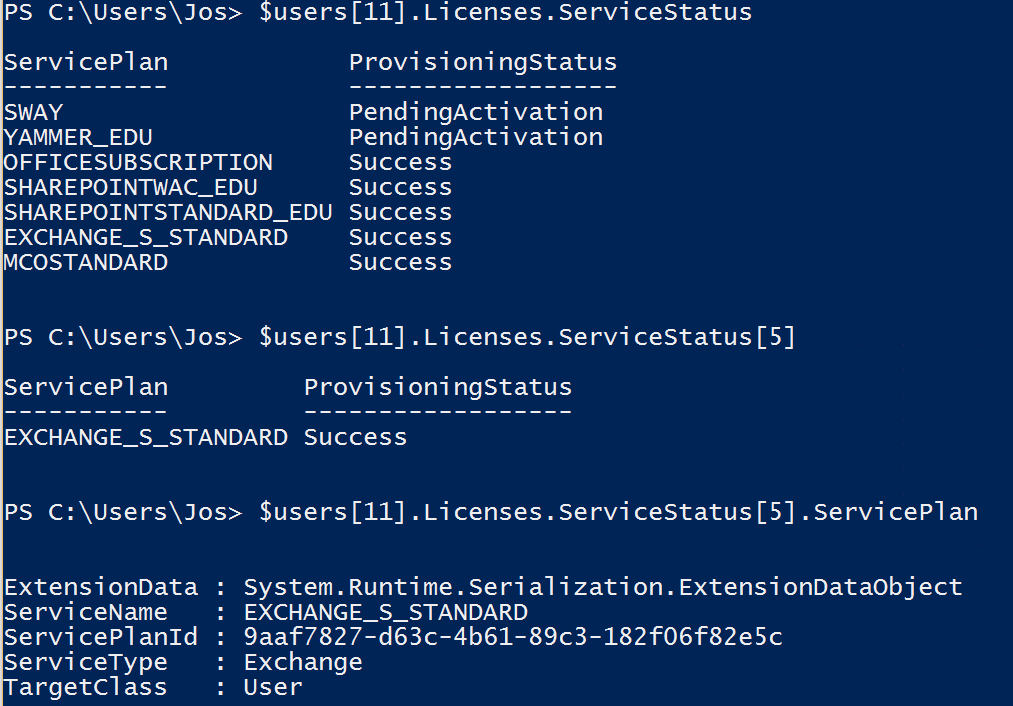
Of course now we’d like to know which of our thousands of users did not have a EXCHANGE _S_STANDARD ServicePlan with a ProvisioningStatus of “Success” after the migration to Office 365.
So, I wrote the following Powershell snippet Continue reading Verifying the ServiceStatus of a specific sublicense in Office 365
If you want to use the Sharepoint Online Management Shell module for Powershell to view user permissions on your Sharepoint Online site, start a Powershell window as admin. If you’re not running as admin you’ll have to add the module path to your environment variable like this:
$env:PSModulePath += ";C:\Program Files\SharePoint Online Management Shell\"
Then load the SPO module:
Import-Module Microsoft.Online.SharePoint.PowerShell
And connect to your sharepoint tenant: Continue reading Viewing permissions on a Sharepoint Online site with Powershell