UPDATE: LeanLAPS has finally been ‘superceded’ by Microsoft’s own LAPS 🙂 https://techcommunity.microsoft.com/t5/microsoft-entra-azure-ad-blog/introducing-windows-local-administrator-password-solution-with/ba-p/1942487
The main differences between Microsoft AAD LAPS and LeanLAPS:
- MS Won’t enable the account if it’s disabled.
- MS Won’t create the account if it doesn’t exist.
- MS Won’t add it to Administrators group if it’s not a member.
- MS Won’t remove accounts from Administrators group if they’re not supposed to be there.
- MS has an AAD integrated GUI and RBAC
- LeanLAPS requires P2 licensing because it used Proactive Remediations
LeanLAPS
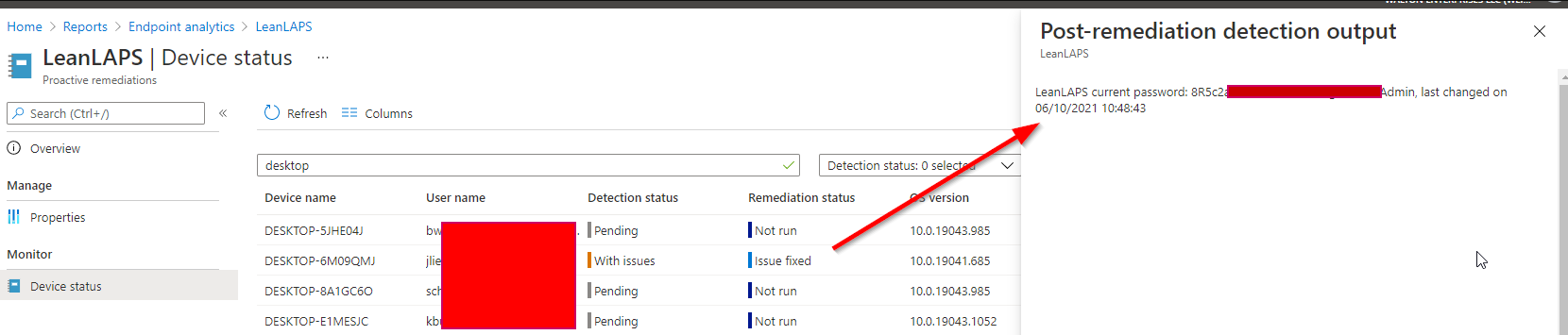
Managing local admin accounts using Intune has a lot of quirks, my tele-colleague Rudy Ooms has already written extensively about this. He also wrote a PowerShell solution to rotate a specific local admin’s password and had the genius idea of using Proactive Remediations (a MEM feature) to display passwords to admins, integrated / free in the Intune Console.
However, I felt I needed a more lightweight solution that;
- does not require/modify registry keys
- does not store the password locally
- can encrypt the password if desired
- does not need separate detection and remediation scripts
- automatically provisions a local admin account
- can remove any other local admin accounts if desired
- can whitelist approved admins or groups from AzureAD or Active Directory
- is language/locale-agnostic (e.g. ‘Administrators’ vs ‘Administradores’….)
Thus LeanLAPS was born!
To install/use:
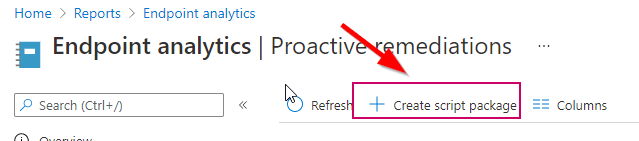
1. head into the Proactive Remediations section of MDE and click Create script package:
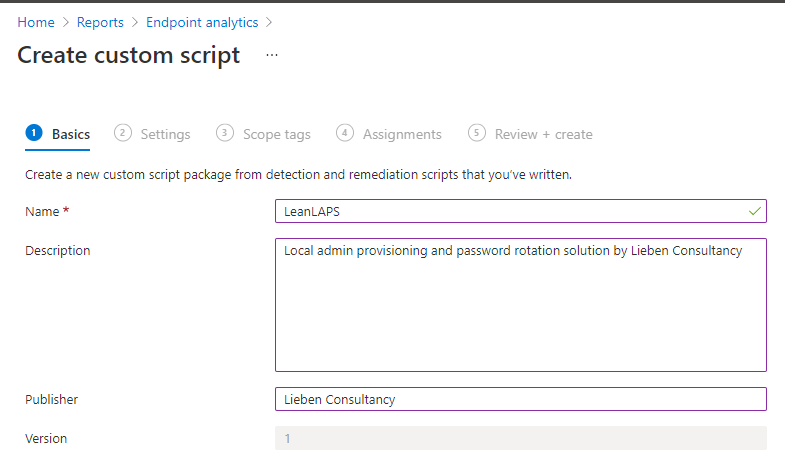
2. Fill out some details:
3. Download and doublecheck the config of LeanLAPS.ps1 (e.g. configure if other local admins should be removed, what the local admin name should be and the password length). Make sure to use NotePad++ / that the file stays UTF-8 Encoded without a BOM.
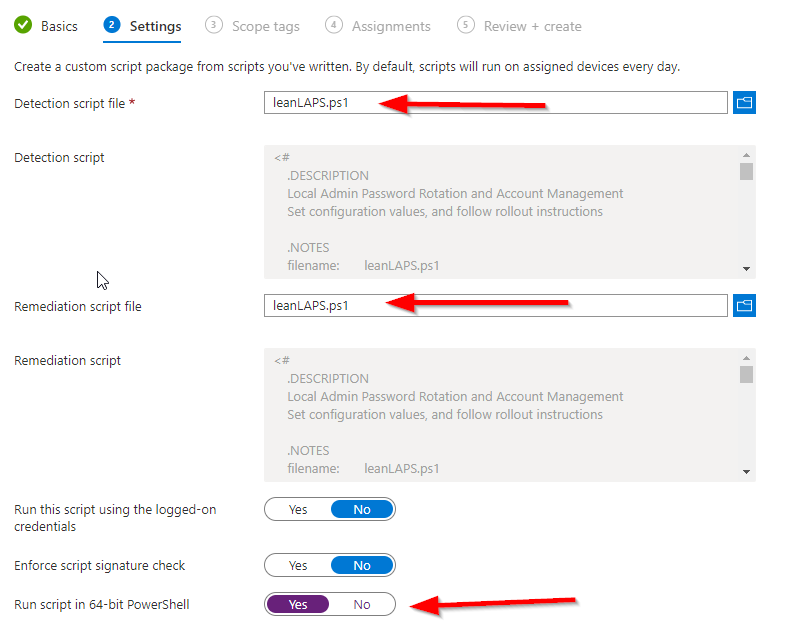
4. Set both the detection and remediation script to LeanLAPS.ps1 and run it in 64 bit:
5. Assign to a group and deploy. By default it will run every day, but you can also let it run more or less frequently, which determines how often the password is reset (hourly in below example):
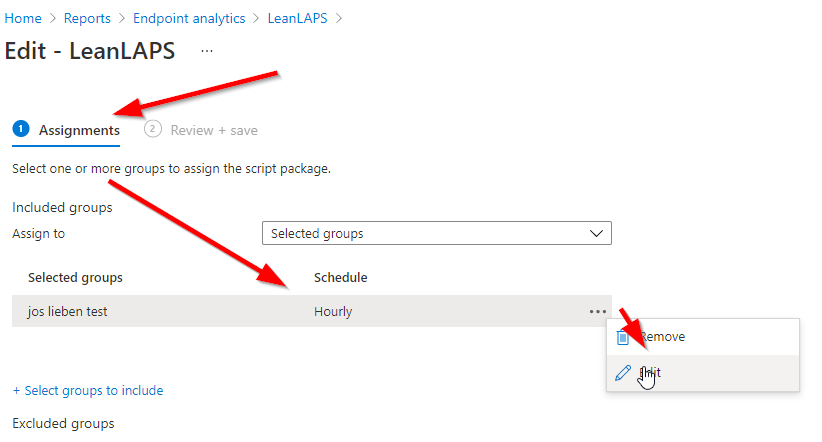
6. Deploy, and then click on the script package:
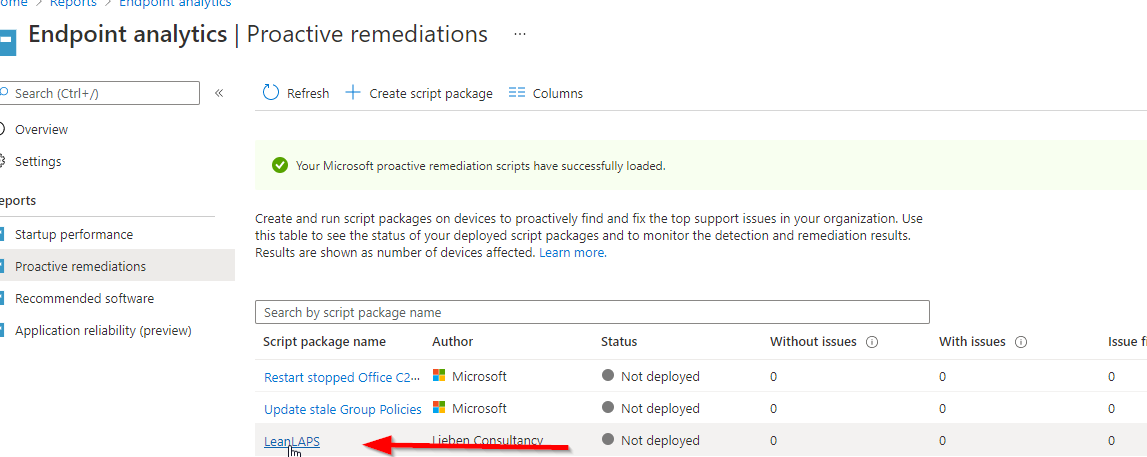
7. Go to Device status and add both output columns:

Congratulations, you can now see the current local admin passwords for all managed Windows 10 devices!
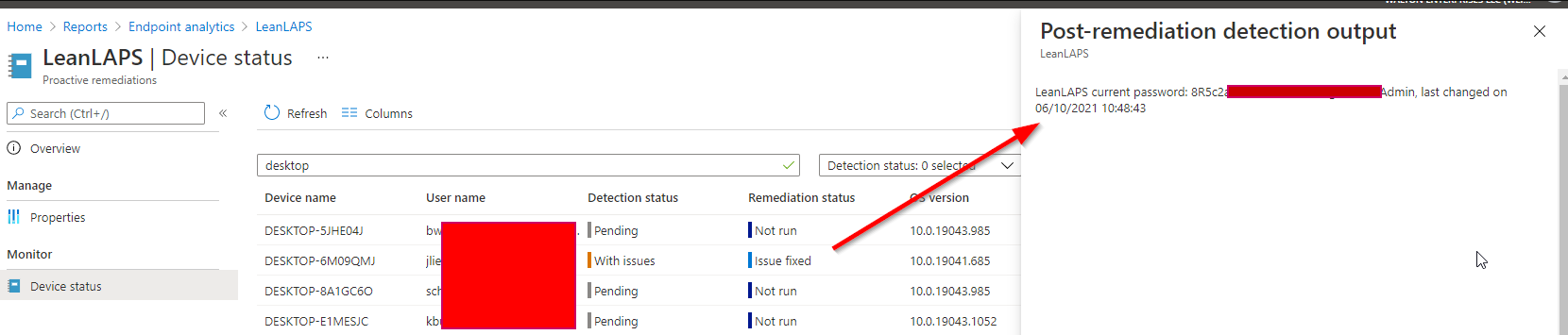
Note: if you wish to trigger a quick remediation, delete the correct keys under Computer\HKEY_LOCAL_MACHINE\SOFTWARE\Microsoft\IntuneManagementExtension\SideCarPolicies\Scripts\Execution and Reports in the client’s registry, then restart the IntuneManagementExtension service and the remediation will re-run within 5 minutes.
8. If you want to display an encrypted password in Intune, generate a public and private key and configure the resulting values in gui.ps1 and leanLAPS.ps1
9. If you don’t want LeanLAPS to remove certain preapproved admins or groups as admin, make sure to configure the $approvedAdmins variable.
RBAC
If you provide e.g. your helpdesk with the correct Intune roles, they will be able to see local admin passwords as reported by above solution:

GUI
The community, in the form of Colton Lacy, also added an optional GUI frontend for LeanLAPS which you could use for e.g. helpdesk staff:
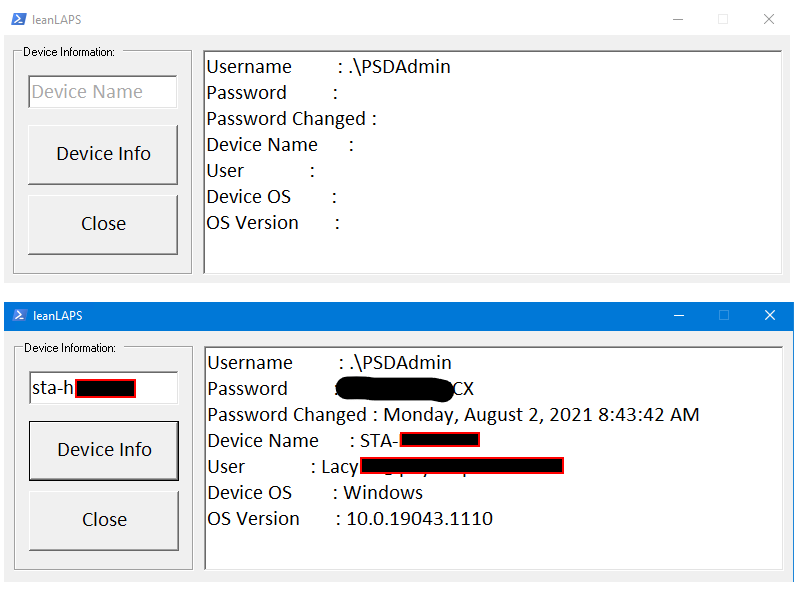
Troubleshooting
If your passwords don’t rotate correctly, check https://smsagent.blog/2021/04/27/a-case-of-the-unexplained-intune-password-policy-and-forced-local-account-password-changes/
Awesome work! Is there any way we can keep the 2 azure AD SIDs for global and local admins that get added when a machine is joined to azure while removing any other local admin? We want to keep the ability to use the local admin group via azure portal while removing any previous local admins. When running the script I notice my azure ad machines lose their global\local admin SIDS.
Updated to the latest script and getting this output now……
{“Username”:”user”,”SecurePassword”:”4f*=f8zDxR”,”Date”:{“value”:”\/Date(1665494623434)\/”,”DisplayHint”:2,”DateTime”:”Tuesday, October 11, 2022 9:23:43 AM”}}
it used to be like this before……
LeanLAPS current password: a0!i4Yay(G for user, last changed on 04/07/2022 17:01:01
Anyway to change it back to old view?
Microsoft makes this such a pain in the neck. Then to add insult to injury your solution requires additional licensing above what we already have, just to implement a feature that should already exist.
SIGH.
Nice work! I’ve upgraded your solution with encryption the password with public key, and sending it securely . it can then be decrypted with private key , so the password is never exposed in user’s computer, on the post to intune or in the intune itself. (and so there is no need to delete intune logs to cover up tracks 🙂
also found that some computers having error changing password with error 3221226252 .
i was able to resolve it by splitting the line where ConvertTo-SecureString happens, so i first create the secure-string and then change the administrator password .
Looks great, thank you.
We are soon to decommission AD and go Azure cloud only.
Can I confirm if this solution still requires AD in the way LAPS does?
i.e. I’m looking for a solution of local admin password management that will work without AD
Thanks, Jos. This is awesome!
I’m getting the following error – have updated the variable $localAdminName = “CustomAccount”
New-LocalUser : A positional parameter cannot be found that accepts argument ‘True’. At C:\WINDOWS\IMECache\HealthScripts\601ec906-1ca6-4958-8678-089ca2e3217e_1\detect.ps1:53 char:19 + … ocalAdmin = New-LocalUser -PasswordNeverExpires $True -AccountNeverEx … + ~~~~~~~~~~~~~~~~~~~~~~~~~~~~~~~~~~~~~~~~~~~~~~~~~~~~~~~~~ + CategoryInfo : InvalidArgument: (:) [New-LocalUser], ParameterBindingException + FullyQualifiedErrorId : PositionalParameterNotFound,Microsoft.PowerShell.Commands.NewLocalUserCommand C:\WINDOWS\IMECache\HealthScripts\601ec906-1ca6-4958-8678-089ca2e3217e_1\detect.ps1 : Something went wrong while processing the local administrators group Cannot validate argument on parameter ‘Member’. The argument is null or empty. Provide an argument that is not null or empty, and then try the command again. + CategoryInfo : NotSpecified: (:) [Write-Error], WriteErrorException + FullyQualifiedErrorId : Microsoft.PowerShell.Commands.WriteErrorException,detect.ps1
can someone help with this ?
That is very clever. I like it and see a lot of usage and need for this. Great job.
Hi, nice work for this script. I’m just confirming that this output is correct as it is not the same as the output shown above? I assume this is for the GUI and serves the same result nonetheless for the remediation output.
{“Username”:”OurLocalAdmin”,”SecurePassword”:”xxxxxxxxxxxxxxxx”,”Date”:{“value”:”\/Date(1665462513995)\/”,”DisplayHint”:2,”DateTime”:”Tuesday, 11 October 2022 2:28:33 PM”}}
Thanks for the script. I have adapted the script so that our helpdesk does not have to search for the device name via the web, but can use it directly in the GUI.
$user = Get-AzureADUser -SearchString $inputBoxUsr.Text
$devicenames= Get-AzureADUserRegisteredDevice -ObjectId $user.ObjectId -All $true | ft DisplayName
Then put the whole thing into the output box and link it to an additional button. Then you can search for a user and all linked devices will be searched in Azure AD. The device name can be copied out of there.
Hi Jos,
Great, thanks for this!
I’ve tried to use the script, but it fails at my machines on creating the user when it does not exist.
The error is: Cannot validate argument on parameter ‘Member’. The argument is null or empty. Provide an argument that is not null or empty and try again.
When running the scripts manually and asking the value of $localadmin it’s empty.
As always, thanks for the amazing contribution! I was just about to set up the LAPS azure blob storage method I’ve read about elsewhere until I noticed your link on the user voice.
Just noticed one thing, we hot-desk and in my HAADJ environment if there is more than one user logged in to a workstation (switch user is enabled). The detection and remediation runs twice in succession, once against each active user. Not a big issue but just thought I’d flag it for your attention.
Hi Jose,
How can I Make sure that the password always contain the password policy requirements. See below error on one of the machines:
Unable to update the password. The value provided for the new password does not meet the length, complexity, or history requirements of the domain.
Great solution, very nice! I have two questions:
First, you wrote under 5. “Assign to a device group (user groups won’t work)” -> I tried it with a user group in my tests and it works with no issues. Could it be that your advice pointed to a earlier version of the tool?
Second, the copyright says “not for commercial use without written consent” -> what is the correct way the get this consent from you? We’d very much like to use your tool in our production environment.
Just a litle heads up
$onlyRunOnWindows10 = $True #buildin protection in case an admin accidentally assigns this script to e.g. a domain controller
[Environment]::OSVersion.Version.Major -ne 10
Windows Server 2016 and 2019 will report 10, so it will not prevent a server to run it.
Great solution BTW, thank you
First of all, thank you very much! We were looking for this solution 🙂
We modified it to encrypt the password, so there is no need to create the scheduled task during the Proactive Remediation.
First, you generate and keep the private and public keys:
Then, in the script you can add a function like below with your public key as a string separated by commas.
    ## Encrypt Password using the Public key
    Function Encrypt-Password ($password)
    {
        $publicKey = "6,2,0,0,0,164,0,0,82,83,65,49,0,8,0,0,1,0,1,0,87,57,158,168,118,164,226,101,9,92,23,13,15,166,223,97,128,194,227,77,94,94,112,240,205,204,111,15,103,1,9,247,241,169,28,250,186,70,83,253,74,33,198,55,1,42,8,143,240,152,0,211,172,12,113,203,136,168,195,146,136,109,102,67,60,55,121,56,79,184,170,15,96,110,108,51,30,228,54,20,79,237,45,52,226,203,48,29,140,28,1,214,227,51,74,243,12,175,171,41,25,154,220,0,237,82,36,30,115,44,196,86,61,173,80,
127,192,171,163,163,151,96,163,204,220,250,236,191,175,135,236,85,114,172,198,109,250,205,218,199,101,84,68,31,194,176,151,165,44,142,6,253,217,221,61,157,250,195,62,59,230,194,1,78,101,63,41,238,52,229,89,158,105,106,139,235,38,62,85,182,230,61,169,182,217,221,180,170,73,78,188,20,37,240,0,223,3,66,174,210,210,248,183,42,5,233,67,226,27,253,75,157,151,78,173,109,40,112,58,157,36,3,175,111,128,28,76,196,114,27,13,211,97,97,182,159,26,204,55,30,195,60,241,142,171,82,82,78,250,36,118,11,195,164,60,196"
        $rsa = New-Object System.Security.Cryptography.RSACryptoServiceProvider
        $rsa.ImportCspBlob([byte[]]($publicKey -split ","))
        $encrypted = $rsa.Encrypt([System.Text.Encoding]::UTF8.GetBytes($password), $false )

        # Post to MEM
        return $encrypted -join ","
    }
And finally in the GUI you can have another function to decrypt the password like:
## Decrypt Password using the Private key
Function Decrypt-Password ($password) {
    $privateKey = "7,2,0,0,0,164,0,0,82,83,65,50,0,8,0,0,1,0,1,0,87,57,158,168,118,164,226,101,9,92,23,13,15,166,223,97,128,194,227,77,94,94,112,240,205,204,111,15,103,1,9,247,241,169,28,250,186,70,83,253,74,33,198,55,1,42,8,143,240,152,0,211,172,12,113,203,136,168,195,146,136,109,102,67,60,55,121,56,79,184,170,15,96,110,108,51,30,228,54,20,79,237,45,52,226,203,48,29,140,28,1,214,227,51,74,243,12,175,171,41,25,154,220,0,237,82,36,30,115,44,196,86,61,173,80,127,192,171,163,163,151,96,163,204,220,250,236,191,175,135,236,85,114,172,198,109,250,205,218,199,101,84,68,31,194,176,151,165,44,142,6,253,217,221,61,157,250,195,62,59,230,194,1,78,101,63,41,238,52,229,89,158,105,106,139,235,38,62,85,182,230,61,169,182,217,221,180,170,73,78,188,20,37,240,0,223,3,66,174,210,210,248,183,42,5,233,67,226,27,253,75,157,151,78,173,109,40,112,58,157,36,3,175,111,128,28,76,196,114,27,13,211,97,97,182,159,26,204,
55,30,195,60,241,142,171,82,82,78,250,36,118,11,195,164,60,196,127,65,213,110,253,181,218,74,33,5,123,65,113,193,60,189,108,173,148,201,136,214,29,74,14,65,28,230,201,63,97,209,43,1,174,139,116,105,173,6,106,103,202,105,202,244,38,236,7,19,246,174,215,224,59,49,179,108,212,30,231,239,21,205,182,121,138,179,207,133,232,64,69,142,191,128,19,151,207,43,195,103,199,57,44,162,76,156,56,167,45,30,132,198,133,149,121,79,142,30,24,188,246,117,195,207,224,90,70,83,140,186,185,78,63,52,179,205,3,204,4,7,33,16,82,201,134,232,41,68,111,163,188,67,49,180,97,121,132,215,211,180,179,189,12,136,182,226,167,118,20,133,134,232,212,142,140,125,86,25,29,68,42,186,145,175,82,207,248,216,191,216,110,219,193,70,79,71,17,210,142,153,223,196,80,71,51,135,151,198,85,244,155,59,226,8,242,74,10,78,226,61,192,104,233,217,248,190,162,54,22,128,32,119,136,116,140,86,227,159,103,213,165,5,9,97,156,166,43,161,165,238,200,186,80,76,7,9,214,83,58,195,198,92,225,186,141,254,184,234,165,183,10,5,12,216,151,252,51,199,183,138,193,184,141,174,96,37,180,27,219,72,152,142,174,3,130,226,41,141,237,129,255,19,145,250,249,253,91,53,3,96,49,11,69,83,3,143,57,15,188,23,248,252,78,111,232,90,26,69,191,128,186,171,232,237,255,187,100,217,91,225,226,62,201,1,47,177,95,96,252,228,247,62,21,203,198,171,87,214,159,61,152,146,58,195,122,5,182,46,227,211,187,91,189,114,93,242,83,69,64,239,162,15,49,215,30,211,146,95,64,65,104,66,251,186,164,241,133,75,163,4,115,168,209,134,175,250,45,194,225,111,84,125,116,199,156,229,124,176,22,87,13,229,22,233,74,231,229,116,8,193,119,192,227,64,142,41,150,25,40,236,154,36,250,56,247,28,189,63,210,53,239,161,145,122,23,111,210,164,236,124,248,110,83,212,154,239,26,233,83,117,104,156,206,221,49,190,73,203,224,40,193,98,157,236,130,96,138,200,22,204,81,114,230,64,205,73,159,172,154,100,39,143,161,182,173,23,152,228,50,21,146,118,57,81,22,48,163,196,165,242,243,90,70,235,70,147,252,89,213,41,156,0,190,160,22,192,183,1,0,211,178,245,12,72,43,142,147,66,253,15,30,36,232,170,236,248,123,123,162,223,214,165,79,127,160,197,41,211,110,209,195,208,241,200,33,1,83,199,93,161,10,246,106,85,25,218,220,21,99,80,79,142,190,152,118,24,169,152,20,133,179,250,46,220,119,76,158,154,97,255,204,136,101,247,192,90,83,106,35,105,43,50,118,164,189,103,66,6,213,36,202,37,130,110,192,130,251,128,196,22,239,54,89,70,141,159,50,133,160,196,250,29,21,227,39,210,242,90,169,113,228,46,46,79,251,70,75,64,196,59,180,94,58,229,99,179,129,56,27,38,4,167,90,97,151,58,218,223,153,65,150,228,72,11,80,163,174,111,21,61,104,96,240,252,0,39,139,195,120,110,164,182,130,72,208,132,150,16,234,188,158,95,36,212,57,212,1,29,11,222,237,174,183,237,86,17,171,74,241,122,132,67,127,164,181,112,253,57,176,64,181,22,240,237,0,33,115,34,45,156,162,167,207,202,11,123,245,47,125,245,231,76,201,77,83,62,123,152,108,138,127,216,87,84,72,68,196,178,149,37,58,25,205,185,197,35,190,52,38,247,254,92,233,241,145,37,189,226,27,80,77,183,16,78,181,230,35,242,24,218,69,12,153,44,197,135,13,206,227,157,132,106,224,85,204,253,149,3,69,15,64,62,86,238,9,138,101,57,200,53,250,77,63,58,53,206,5,120,36,181,171,38,144,183,2,88,156,59,32,143,140,238,5,185,165,61,96,73,232,122,255,231,142,205,61,92,11,192,187,183,14,28,45,112,216,32,235,140,72,116,56,206,128,209,179,241,251,42,188,36,27,44,80,1"
    $rsa = New-Object System.Security.Cryptography.RSACryptoServiceProvider
    $rsa.ImportCspBlob([byte[]]($privateKey -split ","))
    $decrypted = $rsa.Decrypt([byte[]]($password -split ","), $false)

    return [System.Text.Encoding]::UTF8.GetString($decrypted)
}
Enjoy!
Thank you so much for putting this together! I am getting a strange error when using the GUI though. When I attempt to obtain the password for a particular device from the GUI, I receive the error Exception calling “PerformClick” with “0” argument(s): “Invalid JSON primitive:Invalid JSON primitive: LeanLAPS. Note that I named the proactive remediation script in Intune LeanLAPS. If anyone has any insight to this error it your assistance would be greatly appreciated!
Awesome solution, really appreciate all the hard work putting this together. I am running into an issue that I haven’t been able to resolve yet however. When I run the GUI and type in a device name, it shows the password for a completely different device. Any help in resolving this would be greatly appreciated!
Let’s be clear… LeanLAPS is NOT superseded by Microsoft’s implementation at all. In fact, it’s grossly inferior.
Microsoft’s implementation:
That’s pretty freaking lame, if we’re being honest. The only good thing it CAN do is provide a readable password directly from Azure and Intune portals without a GUI tool. Which makes me wonder… could LeanLAPS be updated to store its password in the Windows LAPS attribute in Azure?
Awsome feature! But all I get is “Something went wrong while processing the local administrators group An error occurred while enumerating through a collection: Call cancelled .”
No further info…
Hi and thank you for this elegant solution.
I downloaded the script today and test but get the same error as mention before;
Something went wrong while processing the local administrators group Cannot validate argument on parameter ‘Member’. The argument is null or empty. Provide an argument that is not null or empty, and then try the command again.
Hi Jos,
I can’t find the setting to change the maximum days between a password reset.
Is it just me or?
With regards,
rohgin
This is great! Thank you for your hard work! This is just what I need!
I’m getting an error however:
Hello Jos,
I keep getting this in the event log.
Something went wrong while processing the local administrators group An error occurred while enumerating through a collection: Call cancelled.
Any ideas?
There is a delay between the script run, and it reporting to Intune of +/- 5 minutes.
Was that the issue? If not, are there any errors in the local eventlog?
Great post. Is there a way to specify a local admin account to remove. I only want to remove the “administrators” account an leave all others alone.
Also it only seems to run on 1 device in the group I selected. The 1 device is the first device I setup and added the group any additional devices it doesn’t run on. Event log has no logs, other device has been rebooted and Intune sync’d multiple times.
RBCA pic is just crashed/missing; how could I define a custom role for only seeing this attribute? Not having GA and even not Intune Admin role.
Solution works great. Is there a way to force an immediate password change outside of the scheduled time?
Hi Jos. Thanks for the post which is very useful indeed. On line 84 and 85 you use the PowerShell [ADSI] adapter to get the members of the local administrators group. When I tested the script with my regular domain account, these commands took 30-40 seconds or more to complete. Afterwards I got a friendly warning from the SOC that I had just queried the company AD for all accounts. So I would suggest using “Get-LocalGroup -SID S-1-5-32-544” and “Get-LocalGroupMember -SID S-1-5-32-544” instead. This might also solve some of the issues described in earlier comments. And yeah…we use co-management.
the solution is generally great but not secure. If you even use the task scheduler the attacker has the possibility to read the intunemanagementextension.log. I will think about to optimize the solution how we can query them correctly and transfer secure directly to the proactive remediation feature as post-remediation output.
kind regards
TheSCCMBoy
This solution is so elegant! I’ve only tested it on couple of machines but it looks promising. Thank you!
Is there a reason you left 1 and special characters out of your password generation section of your script?
Is there a way to test this locally first. Whenever I run it nothing happens. I’m running as Admin and with ExecutionPolicy set to Bypass.
All I get is the script running and finishing in 2 seconds the Event logs shows only shows that script started no other info or errors. Nothing changes in the local admins group.
Hi, could you tell me if the password is transmitted cleartext or encrypted between the local pc and Intune?
excellent contribution thank you very much
I have a question I have incorporated this solution but I do not know why it seems that runs with the user account and system account for each machine I have 2 runs with different passwords and in some log of the machines I’m getting the message WRITING what does this mean?
So I’m seeing several duplicate entries in the proactive remediation list using this method. Any ideas why? They also seem to have two different passwords.
Hi Jos, thank you for such a fantastic solution!
Regarding the aspect of the passwords stored in cleartext in the log files, I’ve seen that in the past you suggested restricting FS permissions to the “Logs” folder.
What would be other alternatives to contain this risk?
Have you considered including this aspect to the solution?
Thank you in advance!
Can the license requirements for the proactive remediations component be ignored for this solution?
Hello Jos.
What a pleasure this publication, grateful for the contribution.
I want to ask for your help, implement your solution with the option $ removeOtherLocalAdmins = $ True this will remove the Global Administrator and Device Administrator groups from azure.
1- You know how you can exclude these groups within the code so that you do not eliminate them. ?
2- Do you know how I can recover the azure Global Administrator and Device Administrator groups on the computers that were deleted?
Thank you very much for your help, Greetings
Hi, Jos.
Thanks for this great contribution.
How can I exclude azure groups (Azure AD joined devices or global Admin) ?.
Set-LocalUser : An unspecified error occurred: status = 3221226252 At C:\WINDOWS\IMECache\HealthScripts\a8a4d830-4dc2-4d9b-8ef8-6730be343fea_1\detect.ps1:114 char:30 + … ocalAdmin | Set-LocalUser -Password ($newPwd | ConvertTo-SecureString … + ~~~~~~~~~~~~~~~~~~~~~~~~~~~~~~~~~~~~~~~~~~~~~~~~~~~~~~~~~ + CategoryInfo : NotSpecified: (LapsAdmin:LocalUser) [Set-LocalUser], InternalException + FullyQualifiedErrorId : Internal,Microsoft.PowerShell.Commands.SetLocalUserCommand
Thank you Jos,
The scripted is great. tested it on a few machines. awesome.
The file %TEMP%\LeanLaps.marker will it hold the
password in plaintext? I see a remove-item further
along the script? How long will this file be present on the system? If no issues occur, will the file be deleted anyway?
Hello,
this is the best solution that I found! Tested it and it works great.
Is it possible for the end user to get his(local Administrator account) password somehow?
For example, we use LAPS in our internal environment and all users are able to read password ONLY for their computer that is valid for 30 days and after that the new one is generated.
Great solution, thanks Jos!
I noticed that a protector has been added to make sure that the script only runs on Windows10 devices ($onlyRunOnWindows10). How can I add support for Windows11 devices?
Hello, we implemented your script in MS Endpoint manager. There is just one problem for us, when the script runs, it also puts a checkmark at “user must change password at next login”. Is there a way to avoid this by altering the script?
The Set-LocalUser has no syntax to disable this option for the local admin account.
Thank you so much for making this Script
I would like to add some special characters in password , tried on line 26 by adding special characters
password generated ,but not working.
please suggest me.
Is there any way to make the password change monthly instead of daily?
Hello,
This works great.
I have only one issue, can’t remove AzureAD account account from Administrators group!?
If user account is added from AzureAD as local admin(AzureAD\Intunetest5) I am not able to remove it using this script(attached screenshot), it says: Principal Intunetest5 was not found.
However, I can do that if I run this script on the specific computer locally in Powershell ISE.
Log error:
<![LOG[error from script =Remove-LocalGroupMember : Principal Intunetest5 was not found.
At C:\Windows\IMECache\HealthScripts\2c2ccb13-58f8-41ea-bb92-e8ea3e96450b_4\detect.ps1:48 char:32
+ … $res = Remove-LocalGroupMember -Group $administratorsGroupName – …
+ ~~~~~~~~~~~~~~~~~~~~~~~~~~~~~~~~~~~~~~~~~~~~~~~~~~~~~~~~~
+ CategoryInfo : ObjectNotFound: (Intunetest5:String) [Remove-LocalGroupMember], PrincipalNotFoundExcepti
on
+ FullyQualifiedErrorId : PrincipalNotFound,Microsoft.PowerShell.Commands.RemoveLocalGroupMemberCommand
Hi,
great script, and it works nice, but I’ve one question.
when the script is running, I see the password in plain text in the registry.
HKEY_LOCAL_MACHINE\SOFTWARE\Microsoft\IntuneManagementExtension\SideCarPolicies\Scripts\
after 5 min. the password is removed and changed to REDACTED.
Is it possible to change this faster?
Dear,
I have an issue, when I check I see that some laptops with one entry and others with two entries for the same laptop.
Do you have an idea how we can modify the script so it fixes this issue?
Note the two entries will work fine (one of them) but not the only one entry.
Thanks in advance